
In the first quarter of 2026, the APWG (Anti-Phishing Working Group) recorded 971,181 reported phishing attacks — 13.8% more than the previous quarter. The telecommunications industry was hit hardest: the share of attacks targeting this sector jumped from 5.9% to 33% in a single quarter. Behind each of these numbers there is usually the same, ridiculously simple mechanism — someone clicked a link without reading the address it really led to.
The good news is that reading a URL is a skill you can learn in a quarter of an hour — and it works no matter how clever a message this particular scammer has prepared. In this article, we show what a web address really consists of, why you have to read it from right to left rather than the way you read an ordinary sentence, and what the most popular tricks look like in practice — with concrete examples.
The anatomy of a URL — what it really consists of
Before we get to scammers’ tricks, it’s worth breaking a URL down into its components. Let’s take one, completely fictitious example that will serve us throughout the article:
https://konto.mojbank.pl/logowanie?sesja=8271
The same address, broken down into parts, looks like the animation below — each fragment lights up in turn:
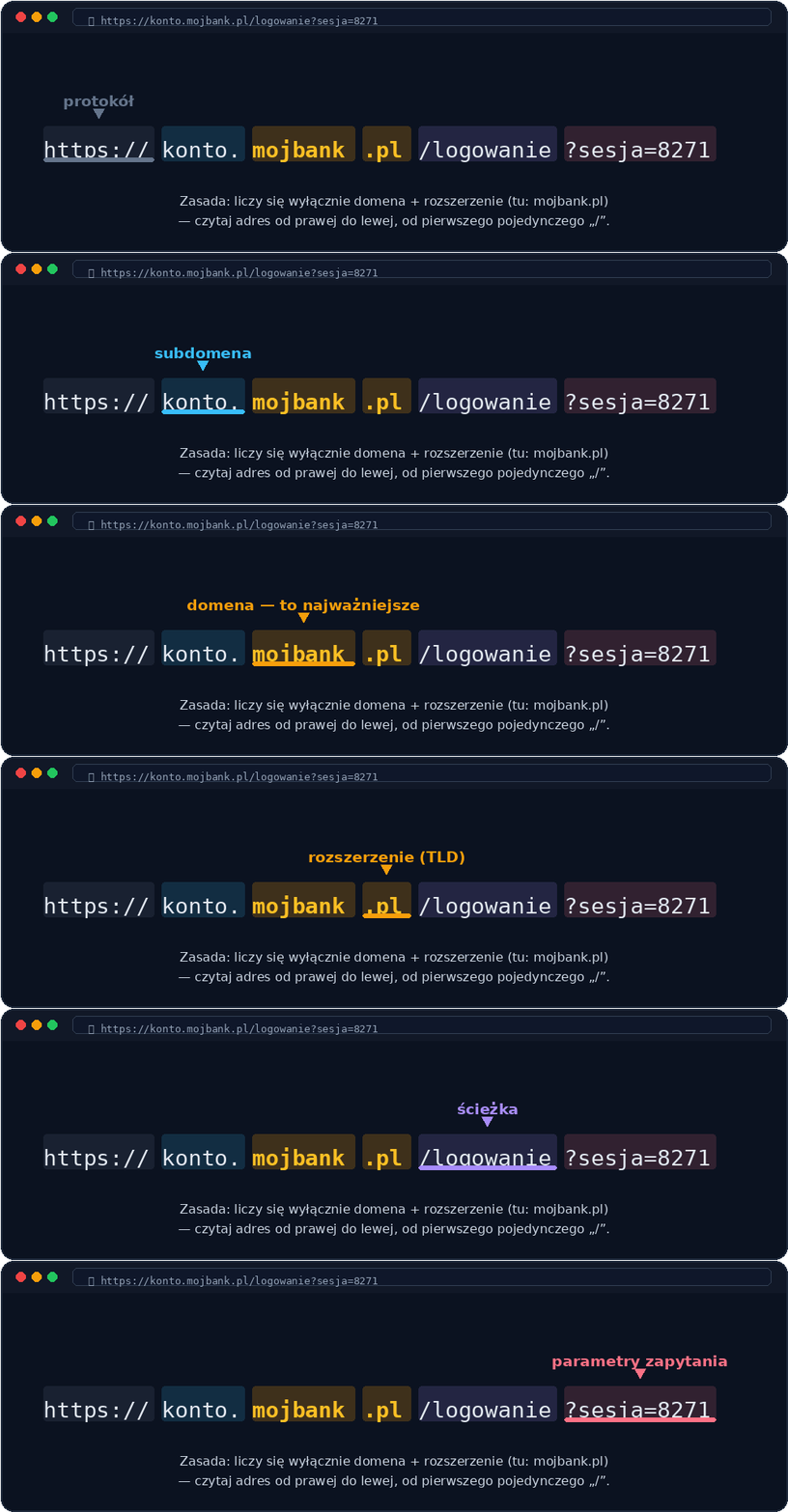
A brief explanation of each part:
- Protocol (scheme) —
https://. It tells the browser what “language” to use to connect to the server. The letter “s” means an encrypted connection — but, as we’ll show later, that’s not the same as a “safe website.” - Subdomain — in our example,
konto.. This is a label that the owner of the main domain can set however they like, for free, in unlimited numbers (poczta.mojbank.pl, konto.mojbank.pl, blog.mojbank.pl — the owner of mojbank.pl can create all of these in five minutes, without any additional registration). - Domain and extension (TLD) —
mojbank.pl. This is the only part of the address that really tells you who owns the website. It is registered and paid for with a domain registrar — unlike a subdomain, it can’t be “added” without formal registration. - Path —
/logowanie. A specific subpage within the site. It can sound completely credible even on a fake domain — it’s the attacker who decides what to name a folder on their own server. - Query parameters —
?sesja=8271. Data sent to the server, visible after the question mark. They say nothing at all about the website’s credibility.
The most important rule: read the address from right to left
This is the most important sentence in the entire article: a domain — unlike ordinary text — has to be read from right to left. Find the first single “/” character in the address (the one that starts the path), and then go back to the left to the nearest dot. What lies between these two points is the only part of the address that the website’s owner really registered and paid for. Everything to the left of that point — including any number of “subdomains” — can be set however they like, without any registration, by anyone who owns any domain in the world.
That’s exactly why phishers’ most dangerous trick works: placing a well-known brand as a subdomain of someone else’s domain. The address mojbank.pl.bezpieczna-weryfikacja.ru contains the text “mojbank.pl” — but it’s just a label freely assigned by the owner of a completely different domain: bezpieczna-weryfikacja.ru. See it in a few examples:
| The address you see | The real domain (read from the right) | Verdict |
|---|---|---|
konto.mojbank.pl/logowanie |
mojbank.pl |
Real — a legitimate subdomain |
mojbank.pl.bezpieczna-weryfikacja.ru/logowanie |
bezpieczna-weryfikacja.ru |
Fake — “mojbank.pl” is just a subdomain label |
www.allegro.pl/moje-zakupy |
allegro.pl |
Real |
allegro.pl-platnosci-bezpieczne.com/oplata |
pl-platnosci-bezpieczne.com |
Fake |
inpost.pl.sledzenie-paczek.info/status |
sledzenie-paczek.info |
Fake |
Ten tricks scammers use to disguise fake addresses
- A typo / swapped letters —
mojbnak.plinstead ofmojbank.pl. In a hurry, the brain automatically “corrects” typos, which is why we rarely notice them. - A missing character —
mojbnk.plinstead ofmojbank.pl. - An extra character —
mojbankk.plinstead ofmojbank.pl. - A similar letter or digit — the digit
0instead of the letter “o,” the digit1instead of “l”:m0jbank.pl,a11egro.pl. - A hyphen instead of a dot —
moj-bank.plis a completely different, unrelated domain, not a “spelling variant” of mojbank.pl. - The wrong extension (TLD) —
mojbank.comorallegro.coinstead ofallegro.pl. The same name under a different extension can be registered by someone else entirely. - The real name as a subdomain of someone else’s domain — the most dangerous of these tricks, described above:
mojbank.pl.bezpieczna-weryfikacja.ru. The address “contains” a familiar name, but the real domain is what comes directly before the first single “/”. - Homographs and punycode — a domain made up of letters from another alphabet that are visually indistinguishable from Latin ones. In 2017, security researcher Xudong Zheng registered the domain
xn--80ak6aa92e.com, which Chrome, Firefox, and Opera displayed as a cleanapple.com— because every letter came from the Cyrillic alphabet but looked identical to a Latin one. Browsers deal with this very differently: a 2021 USENIX study found that Safari detected 90.3% of such domains, and Firefox — only 6.1%. - The @ sign in an address — in a link like
https://mojbank.pl@zle-serwery.ru/logowanieeverything before the@sign is ignored by the browser. The real host address is what comes after the@, that is,zle-serwery.ru. It’s an old trick, but it still works best where you can’t see the address bar before clicking — e.g., in text messages. - An IP address instead of a domain —
http://185.23.44.12/logowanie. No serious bank or major website asks you to enter a password at a bare IP number.
On top of that, there are shortened links (bit.ly, tinyurl.com, and the like), which by definition hide the destination domain until you click. They aren’t dangerous in themselves — legitimate companies and media use them too — but if they come from an unknown source, it’s worth expanding them first with a preview tool rather than clicking blindly.
Or maybe the padlock (HTTPS) alone is enough?
Many of us were taught a simple rule: “look for the padlock in the address bar — it’s a sign the website is safe.” That advice made sense a dozen or so years ago — today it is dangerously incomplete.
The padlock and the prefix https:// mean only that the connection between your browser and the server is encrypted — no one “along the way” can see the data being sent. They say absolutely nothing about who is on the other end of that connection. An encryption certificate — for example, from the free, completely legitimate Let’s Encrypt — can be set up in a few minutes by anyone, including someone who has just registered the domain mojbank.pl.bezpieczna-weryfikacja.ru. Modern phishing sites almost always have an active padlock, because browsers warn about a lack of encryption anyway — so attackers simply set one up.
Conclusion: the padlock is a signal that the transmission is encrypted, not that the sender is trustworthy. All that counts is the domain, checked according to the “right to left” rule described above.
A practical protocol: 6 steps before you click
- Don’t click on reflex. Time pressure (“Your account will be blocked within 24 hours”) is the most popular phishing technique — it should raise your guard on its own.
- On a computer, hover your cursor over the link (without clicking) and look at the status bar in the lower left corner of the browser — the real destination address will appear there.
- On a phone, press and hold the link with your finger (long press) — a preview of the full address will appear before you open it.
- Find the domain by reading from the first single “/” to the left, up to the nearest dot. What you see there is the only reliable indication of the website’s owner — the rest of the address can be anything.
- Expand shortened links before clickingif they come from an unknown source — e.g., with a site like checkshorturl.com.
- When in doubt, don’t click at all. Go to the website manually by typing an address you know into the browser or using your own bookmark.
Frequently asked questions
Does a green padlock in the browser mean the website is safe?
No. The padlock only tells you that the connection is encrypted. It doesn’t confirm the identity of the website’s owner — anyone can set up an encryption certificate, including the creator of a fake domain.
Does a subdomain always mean a scam?
No — subdomains are a normal, legitimate mechanism used by real companies (e.g., poczta.google.com, konto.mojbank.pl). The problem is the opposite situation: when a name you know (e.g., “mojbank.pl”) appears as a subdomain of a completely unrelated, unknown domain.
Are short links (bit.ly, tinyurl) always dangerous?
Not in themselves — legitimate companies and media use them too. The problem is that they hide the destination domain until you click, which is why it’s worth expanding a link from an unknown sender first.
How can I check who really owns a domain?
A domain’s registration data can be checked in a WHOIS search engine (e.g., on whois.com). Among other things, you can see the registration date there — a domain created a few days ago that impersonates a large, well-known website is a serious warning sign.
Can all of this be checked on a phone, where you can’t see the address bar?
Yes — in most mobile apps and browsers, you just need to press and hold the link (long press) to see a preview of the full address before you open it.
Summary
A URL looks like a string of random characters, but it has a strict, predictable structure — and the only part that really identifies the website’s owner is the domain and its extension, read from the first single “/” to the left, up to the nearest dot. Everything else — the subdomain, the path, the parameters, and even the HTTPS padlock — can be set however someone likes, including by a scammer. Tens of thousands of phishing attacks reported every quarter rely precisely on the fact that most of us read an address from left to right and trust the first fragment we recognize. Reversing this habit — looking at the address from right to left before you click — is one of the simplest and at the same time most effective digital self-defense skills.
Want to deepen this knowledge?
Reading URLs is one of the many skills described in our “How to Search?” guide — a practical PDF guide that teaches you step by step how to search for, check, and verify information on the internet and in conversations with artificial intelligence. Buy the guide for $14 — a one-time payment, access forever.
We develop the “How to Search?” project on a volunteer basis, with no ads and no sponsors. If this article was useful to you, you can support us on Suppi — every bit of support translates directly into new guides and educational materials.
Also subscribe to our YouTube channel, where we show in an accessible way how to recognize fake websites, disinformation, and AI-generated content.